
Sign-in, passwords and MFA
Sign in securely, reset a password and enable multi-factor authentication.
Sign in and MFA
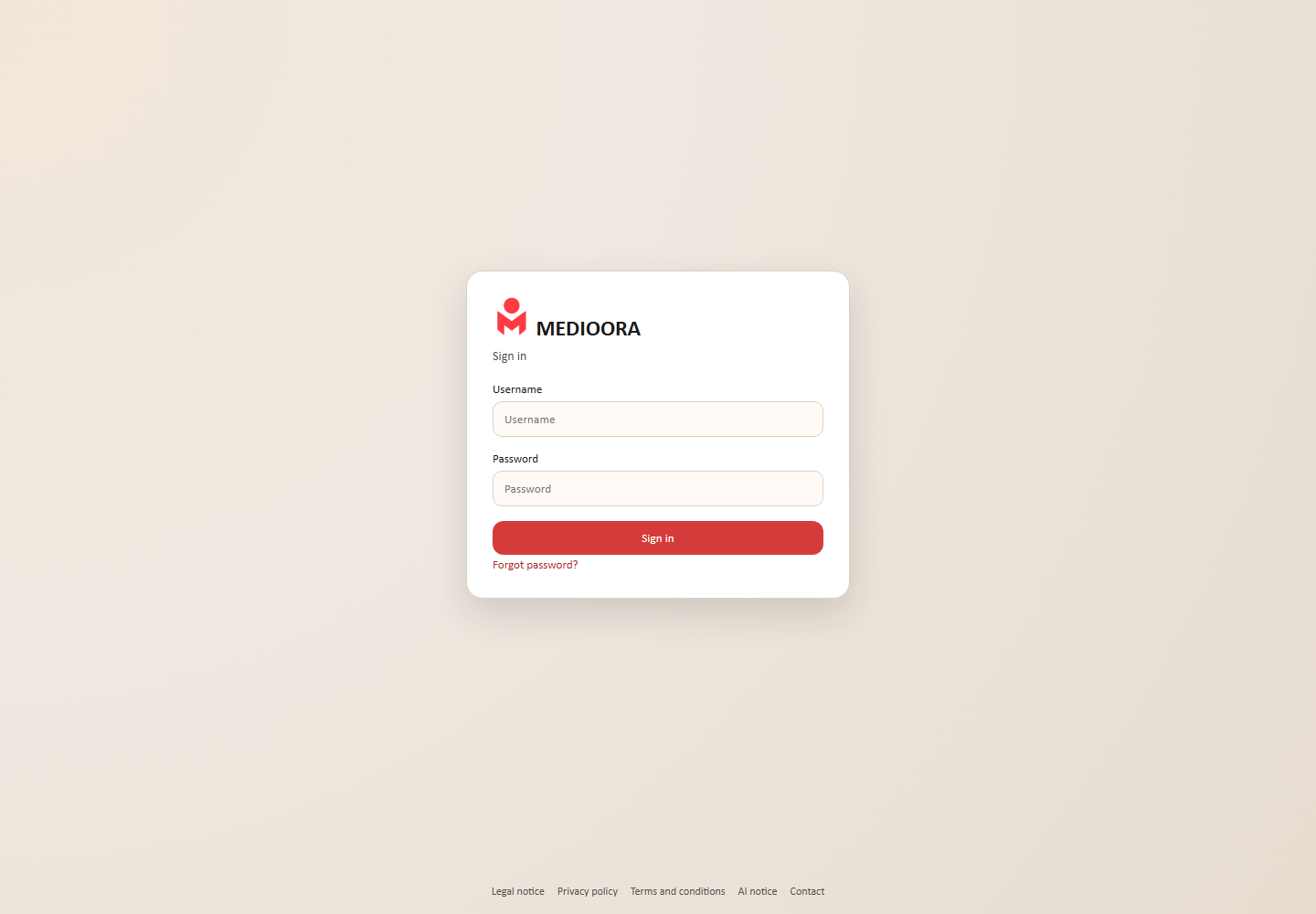
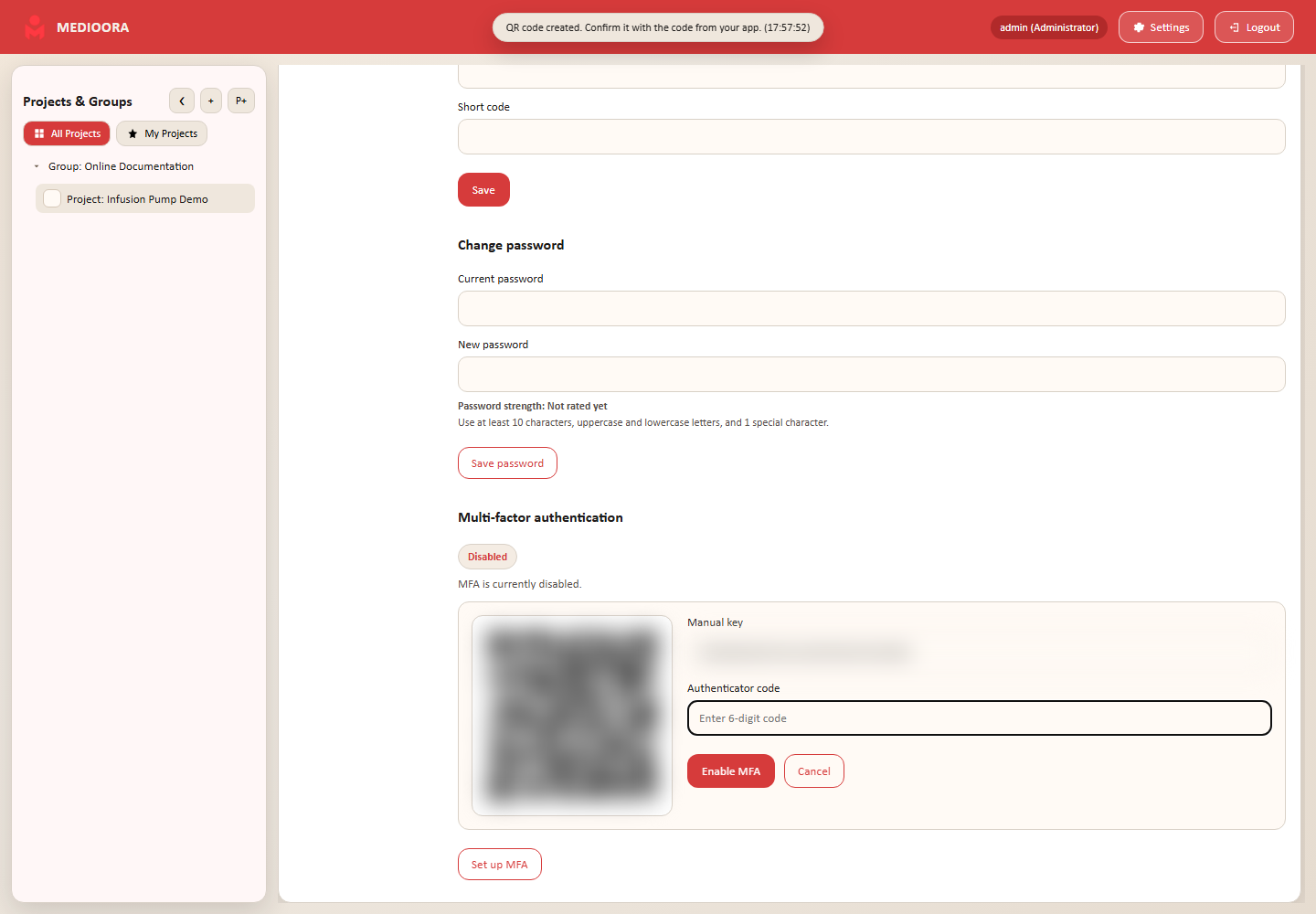
Enter username and password. If MFA is enabled, MEDIOORA then requests the six-digit authenticator code. Enable MFA under Settings → Profile → Set up MFA: scan the QR code, enter a current code and confirm activation.
Reset a password
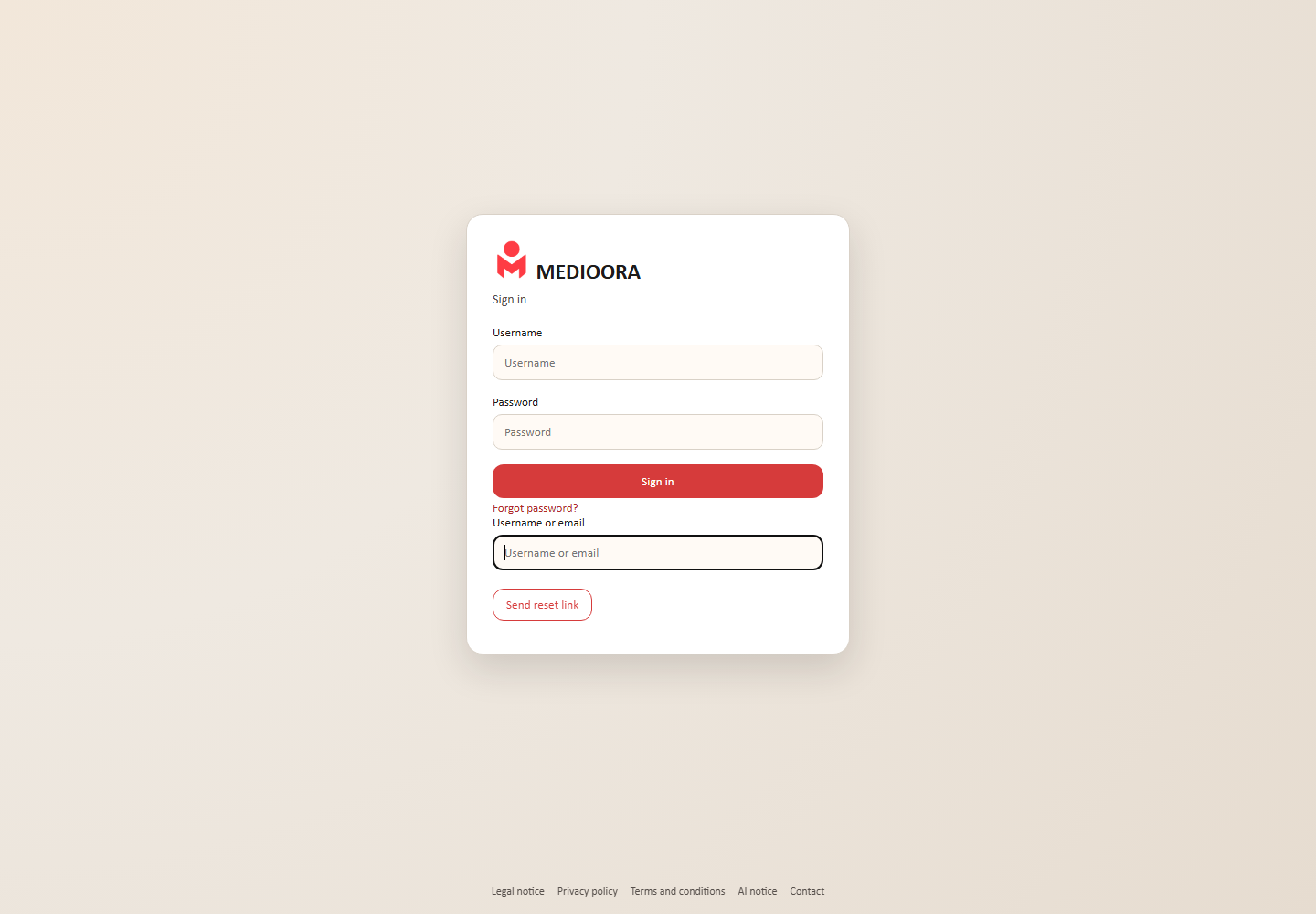
Open Forgot password? below the sign-in form, submit username or email and follow the emailed reset link. The neutral confirmation does not disclose whether an account exists. Email and SMTP must be configured.
Security behavior
Password and MFA failures share one counter. After three consecutive failures the account is temporarily locked for five minutes; subsequent failures double the delay up to 24 hours. Administrators may receive a throttled warning email. A password change clears the failure state and, when email is configured, sends a security notice containing a seven-day self-lock link.